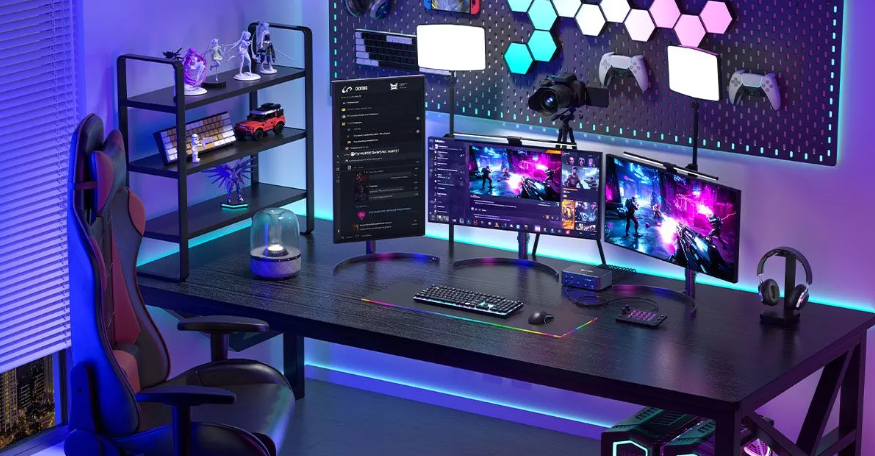
In today's world, where efficiency and productivity are of paramount importance, a triple-monitor setup has become the top choice for professionals, gamers, and crea-tive individuals looking to upgrade their workspaces. If you're still hesitating about adding more screens, this guide will help you break down the essential information. From laptops to desktops (and even dual-desktop setups), we'll walk you through the basic configurations to ensure your setup is optimized and meets your needs.
Why Opt for a Triple-Monitor Setup?
A triple-monitor configuration is not just about having extra screen space; it's about creating an immersive and highly efficient workflow. Whether you're multitasking, gaming, or live streaming, the advantages of having three monitors are undeniable.
For Professionals: Imagine writing a report on one screen, having your email or chat open on another, and referring to reference materials on the third. This eliminates the need for constant window switching, saving you time and energy.
For Gamers: An ultra-wide panoramic view makes the gaming experience more immersive. Racing and simulation games, in particular, benefit from a broader field of vision, making you feel like you're right in the game.
For Crea-tives and Designers: With a larger workspace, tasks like photo or video editing become much easier as you can have your tools, timelines, and previews visible at all times. The boost in productivity is significant.
Key Considerations for Laptop Triple-Monitor Setups
Setting up triple monitors with a laptop can be tricky but is definitely achievable. Here are the key things to keep in mind:
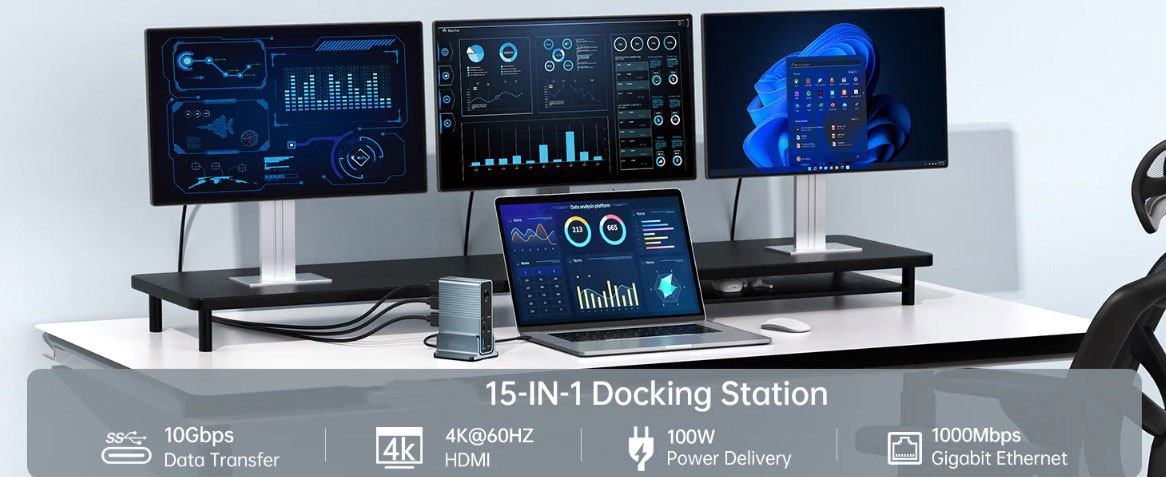
Ports and Docking Solutions: Most laptops have limited ports, and supporting three external monitors requires some additional hardware. A reliable docking station is crucial. Look for models that support multiple video outputs (DisplayPort, HDMI, or USB-C). If your laptop is equipped with Thunderbolt 3 or 4, connecting will be even more convenient as it can support high data transfer rates and multiple monitors.
Graphics Card: Not all laptop GPUs are powerful enough to run three monitors smoothly. Before starting, check your graphics card's specifications to see if it supports multiple monitors and the resolutions and refresh rates you desire. For a smooth experience, the graphics card should at least support 1080p resolution and a 60Hz refresh rate.
Cooling and Performance: Running three monitors simultaneously can push your laptop's performance to the limit, so it's essential to ensure it doesn't overheat. Check your laptop's cooling system and consider purchasing a cooling pad to help manage the extra load.
Essential Points for Desktop Triple-Monitor Setups
Desktops offer more flexibility when adding monitors, but there are still a few things to remember:
Graphics Card and Performance: Desktops usually come with more powerful GPUs, which are crucial for handling three monitors simultaneously. If you're gaming or using design software, check your GPU's output options to ensure it can run the monitors at your desired resolution and refresh rate. Ideally, aim for 1440p or 4K resolution with a refresh rate of at least 60Hz (higher if you're gaming).
Monitor Stands and Ergonomics: Adding more screens means you'll need to rethink your desk setup. Consider using adjustable monitor stands or wall mounts to save desk space and ensure the screens are positioned comfortably. Proper ergonomics are vital, especially if you plan to sit at your desk for long periods.
Cable Management: Without proper care, a triple-monitor setup can quickly become a tangled mess of cables. It's advisable to invest in quality cable management solutions such as cable ties, cable sleeves, or under-desk trays. A multi-functional docking station (with power, video outputs, and USB ports) can also help reduce cable clutter.
Tips for Triple-Monitor Setups with Dual Desktops
Running triple monitors with two desktops might sound complex, but it can be easily achieved with the right tools. Whether you're managing both your work computer and personal gaming rig or simply running two systems simultaneously, streamlining your workspace is essential. The Purplelec DS015 USB-C Docking Station is designed for this very purpose.
KVM Functionality: For users who need to control two desktops with a single set of peripherals and monitors, a KVM (Keyboard, Video, Mouse) switch is a lifesaver. The DS015 USB-C Docking Station makes switching between two desktops a breeze. With just the press of a button or a hotkey, you can seamlessly transition between your work and personal tasks without the hassle of unplugging and replugging all your devices.
High Resolution and Refresh Rate: The DS015 supports three 4K monitors at 165Hz, ensuring you get crisp, sharp visuals and smooth performance across all your displays. Whether you're working on high-resolution projects or enjoying an immersive gaming experience, the high resolution and refresh rate deliver exceptional picture quality and responsiveness.
Quick Switching: With the DS015, switching between desktops is fast and efficient. The docking station's hotkey switching feature allows you to instantly toggle between the two desktops, minimizing disruptions to your workflow and providing a smoother user experience.
15-in-1 Docking Station: The DS015 offers comprehensive connectivity options. It comes equipped with 15 ports, including USB-A 3.0, USB-C, Gigabit Ethernet, and a 3.5mm audio jack. This extensive connectivity ensures you can easily connect all your necessary peripherals and accessories.
By integrating these advanced features, the Purplelec DS015 provides a seamless and efficient solution for managing multiple desktops with a triple-monitor setup.
Conclusion
A triple-monitor configuration can revolutionize the way you work, play, and create. Whether you're seeking a more efficient workspace or an immersive gaming experience, the key is to ensure your system can handle the demands. For laptops, consider using a docking station and make sure your GPU can manage multiple monitors. Desktops offer greater flexibility, but ergonomic screen placement and cable management are crucial. If you need to use two desktops simultaneously, the DS015 USB-C Docking Station is the ideal solution for simplifying and streamlining your workflow.