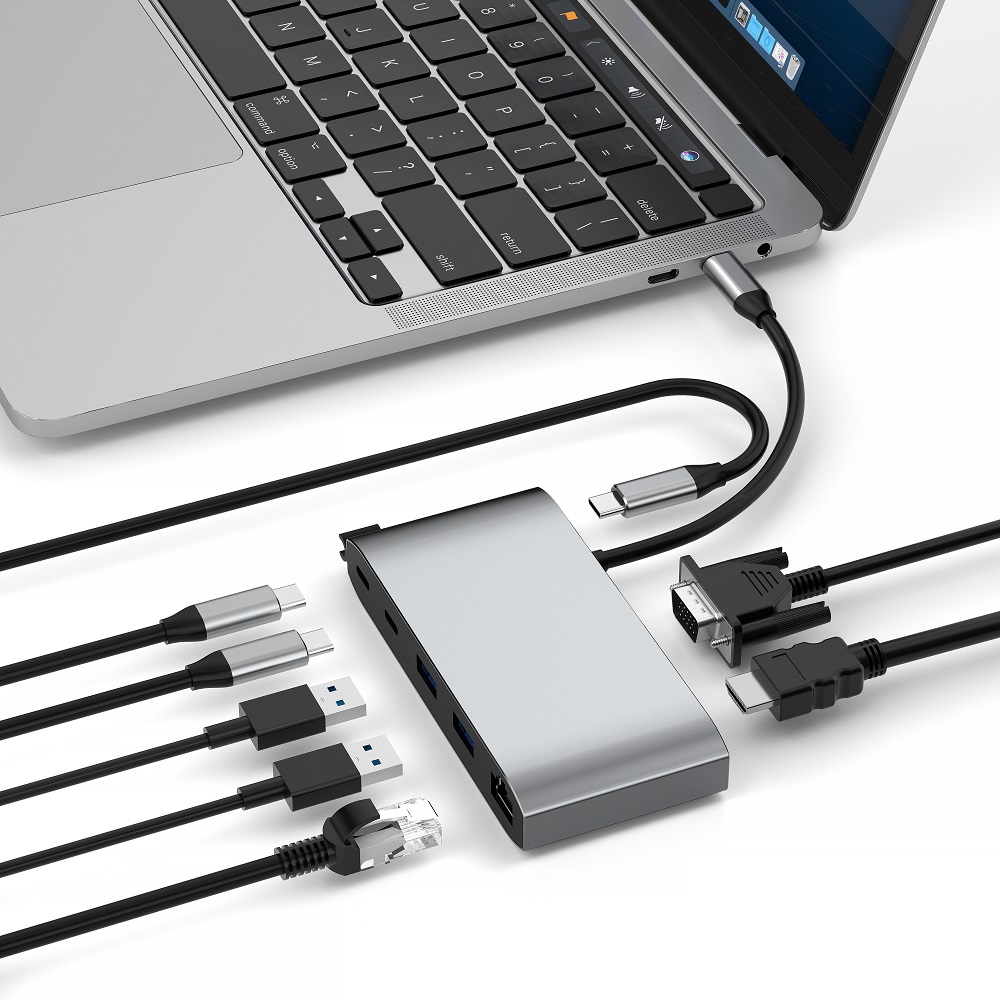
Attaching dual monitors to a laptop dock significantly enhances your productivity by expanding your workspace and making multitasking a breeze. Whether you're a professional who needs more screen real estate to get work done; a gamer who wants an immersive gaming experience; or you just love the luxury of multiple monitors, a laptop dock with dual monitors can deliver Come to obvious advantages. This comprehensive guide aims to provide an in-depth look at connecting dual monitors to a laptop dock and provide practical advice to help you get the most out of this multi-monitor setup.
Understanding Your Setup
Before diving into the specifics of how to connect dual monitors to a laptop docking station, it's essential to understand the components involved:
1、Laptop: Ensure that your laptop supports external monitors and has the necessary ports.
Adjust the display order by dragging and dropping the monitor icons to match your physical setup.
2、Docking Station: A docking station serves as a hub for connecting multiple peripherals to your laptop. Make sure your docking station supports multiple monitors.
3、Monitors: Have two monitors ready with the appropriate cables (HDMI, DisplayPort, etc.).
Step-by-Step Guide for how to connect dual monitors to laptop docking station
Step 1: Check compatibility
First, verify that your laptop and docking station can support multiple monitors. Most modern laptops and docking stations, like those from Alogic, support dual monitor setups. Check your laptop’s specifications and the docking station’s manual to ensure compatibility.
Step 2: Connect the Docking station to your laptop
Connect your docking station to your laptop using the appropriate cable, typically USB-C or Thunderbolt. Ensure that the docking station is powered on if it requires an external power source.
Step 3: Connect the Monitors to the docking station
Now, connect your two monitors to the docking station. Depending on the available ports on your docking station and monitors, you might use HDMI, DisplayPort, or VGA cables. Here’s how to hook up two monitors to a laptop docking station:
1、HDMI: If your docking station and monitors support HDMI, connect the HDMI cables from the monitors to the docking station. For a setup involving 2 monitors and 1 HDMI, you might need an HDMI splitter if the docking station has only one HDMI port.
2、DisplayPort: Connect the DisplayPort cables from the monitors to the docking station if available.
3、VGA: Some older monitors use VGA connections. If your docking station supports VGA, connect the VGA cables accordingly.
Step 4: Configure Display Settings
Once your monitors are connected, you need to configure the display settings on your laptop:
1、Windows:
Right-click on the desktop and select "Display settings"
Under the "Multiple displays" section, select "Extend these displays" to use the monitors as an extended desktop.
Adjust the display order by dragging and dropping the monitor icons to match your physical setup.
2、Mac:
Go to "System Preferences" and select "Displays."
Click on the "Arrangement" tab.
Drag the display icons to match your physical setup, and check the "Mirror Displays" box if you want to duplicate the screens.
Tips for Optimizing Your Dual Monitor Setup
1、Resolution and Orien-tation: Ensure that both monitors are set to their optimal resolution for clear and crisp visuals. You can also adjust the orien-tation if you prefer one monitor in portrait mode.
2、Positioning: Arrange your monitors ergonomically to reduce strain. The top of the monitors should be at or slightly below eye level.
3、Docking Station Placement: Place the docking station in a convenient location to avoid cable clutter and ensure easy access to ports.
4、Cable Management: Use cable ties or clips to keep your workspace tidy and avoid tangled cables.
Troubleshooting Common Issues:
No signal on one or both Monitors
Check Connections: Ensure all cables are securely connected.
Input Source: Verify that the monitors are set to the correct input source (HDMI, DisplayPort, etc.).
Update Drivers: Ensure your laptop’s graphics drivers are up to date.
Monitors Not Detected
Reboot: Sometimes, a simple reboot can resolve detection issues.
Display Settings: Revisit the display settings and click "Detect" to force the system to recognize the monitors.
Docking Station Firmware: Check if there are firmware updates for your docking station.
Setting up a dual-monitor docking station for your laptop is a simple and efficient process that can significantly increase your productivity and optimize your workflow. Whether you choose a Purplelec docking station or another brand, the basic principles are the same. By following the established steps, you can easily connect two monitors to the docking station and enjoy the many benefits of a multi-monitor environment. During this process, be sure to check device compatibility, ensure proper connection, and properly configure display settings for the best experience.
For anyone seeking the ultimate in productivity, investing in a multi-monitor docking station is a smart choice. With the right setup, you'll be able to easily navigate multiple applications and dramatically increase your multitasking capabilities, creating a more productive workspace.