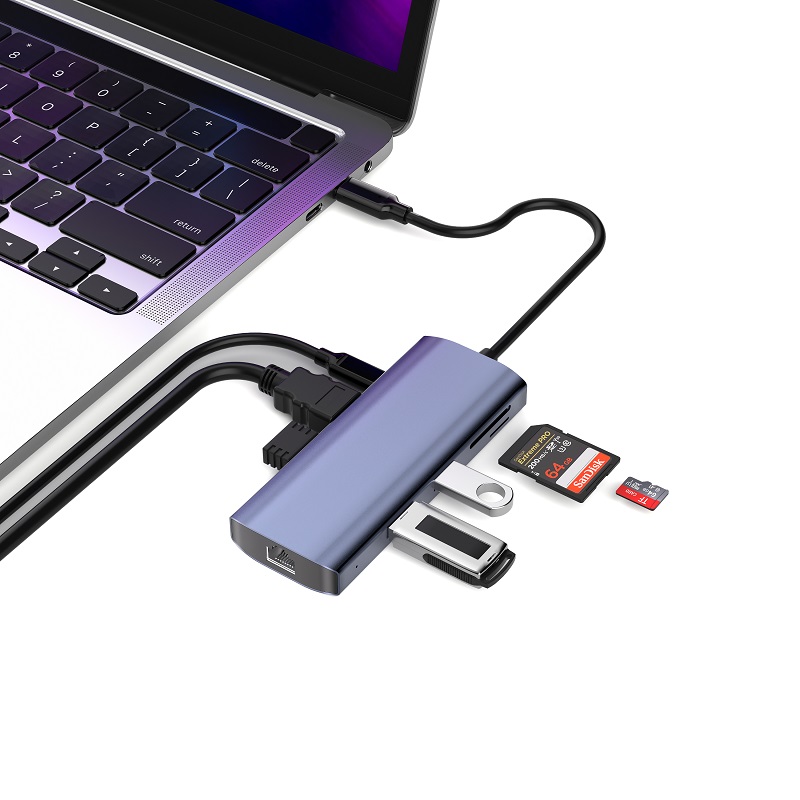
A USB C to HDMI adapter serves as a connecting bridge, enabling you to link your USB C devices with HDMI displays. It is a convenient and practical tool. It supports both USB C and HDMI standards, allowing you to effortlessly connect devices with USB C ports, such as laptops, tablets, game consoles, and smartphones, to TVs or monitors. This way, you can output high-resolution videos on larger screens and even achieve dual-monitor displays, which is handy for meeting presentations. Moreover, these adapters are usually lightweight and compact, making them ideal for business travelers to carry around. However, when choosing one, you need to consider factors like the HDMI version supported by your display and whether you need an active or passive adapter.
Common Troubleshooting Procedures
Confirm the Connection
First, check the USB C and HDMI connections to ensure they are properly plugged in. Familiarize yourself with the correct way to connect the adapter. If the USB C port on your device is unresponsive, check if it is functioning normally. If it is, continue with the troubleshooting process; otherwise, try connecting the adapter to another port.
Check for Compatibility Issues
If the adapter fails to work properly, incompatibility between the HDMI port and the adapter could be the culprit. After confirming that the adapter is compatible with your computer and TV, try connecting it to a different USB port. Preferably, start with a USB 3.0 port. If it still doesn't work, try other ports. If all attempts fail, you'll need to purchase a new USB C to HDMI adapter.
Examine the Operating System and Drivers
In most cases, the problem doesn't lie with the computer or the external display itself. First, verify that your operating system is compatible with the adapter. Determine your operating system version and then download the latest drivers from the manufacturer's website (which are usually mentioned in the user manual). Install the drivers and restart your device. Make sure to disconnect the adapter from the computer before restarting. You can also use Driver Easy to automatically detect your system and find the appropriate drivers.
Inspect the Display Settings
Check the display settings to ensure they are configured correctly and can receive HDMI input. If your HDMI device has a resolution control settings menu, set it to "Auto" first. Then, reset it to match the original resolution of your video projector or display. For example, if your TV or projector supports 720p, 1080p, or 4K, adjust the settings accordingly. Connect the HDMI adapter to the USB 3.0 port of your device and the HDMI interface of the adapter to the display, monitor, or projector. You can choose from "Duplicate," "Extend," or "Projector Only" modes as needed and enjoy high-resolution content on the extended display.
Troubleshoot Hardware Problems
Hardware issues are often caused by a faulty adapter or damage to the USB C or HDMI ports. Connect the adapter to another device or use a different adapter on your device to check if the adapter is damaged. If it is, you'll need to replace it. The USB C or HDMI ports on your device or external display may stop working due to physical damage, loose connections, or long-term wear and tear. Connect other peripheral devices to the same port to see if they work properly. If the port is physically damaged, you may need professional repair or replacement. If the problem is due to a loose connection or debris, try cleaning the port. When inserting the adapter, ensure a firm and correct connection.
Test with Alternative Devices
Use a spare device to test the adapter. If the HDMI adapter is also incompatible with other devices, it indicates that you need to replace it. Alternatively, connect the adapter to other USB ports on your computer or laptop. The issue may be caused by the USB port you are currently using. Additionally, if you have a spare USB C to HDMI adapter or hub, switch between them to determine if the problem is hardware-related.
Seek Professional Help
If none of the above methods resolve the issue, you can contact the manufacturer or the technical support team for further assistance.
Preventive Measures
Ensure Compatibility
Before purchasing a USB C to HDMI adapter, make sure it is compatible with your specific devices. Ensure that your devices and HDMI displays support the necessary standards and features required by the adapter. Read user reviews and recommendations carefully and pay attention to any problems or compatibility issues reported by other users.
Regularly Check for Updates
Regularly check for software and firmware updates to ensure that the drivers for your devices and adapters are up to date. Download and install the latest drivers to guarantee compatibility and optimal performance.
Use and Store Correctly
Ensure sufficient power supply and correct cable connections. Handle all cables gently when connecting or disconnecting the adapter to avoid damaging it by applying excessive force or twisting the cables. Choose high-quality adapters and cables, as low-quality ones may not provide a stable connection. Select the correct display source and address potential hardware limitations to enhance your user experience. When not in use, store the adapter in a safe and clean place, away from extreme temperatures, moisture, physical damage, strong forces, or sudden disconnections. Follow the correct steps when disconnecting the adapter and safely remove it from the port to prevent any potential damage.
Conclusion
When troubleshooting USB C to HDMI adapter issues, it's essential to consider all possible scenarios. By following the above troubleshooting suggestions, you can successfully resolve most USB C to HDMI adapter problems and establish a stable connection between your USB C devices and external HDMI displays. By eliminating and solving USB C to HDMI issues, you can enjoy a seamless multimedia experience and fully unleash the potential of your devices.