I. Introduction
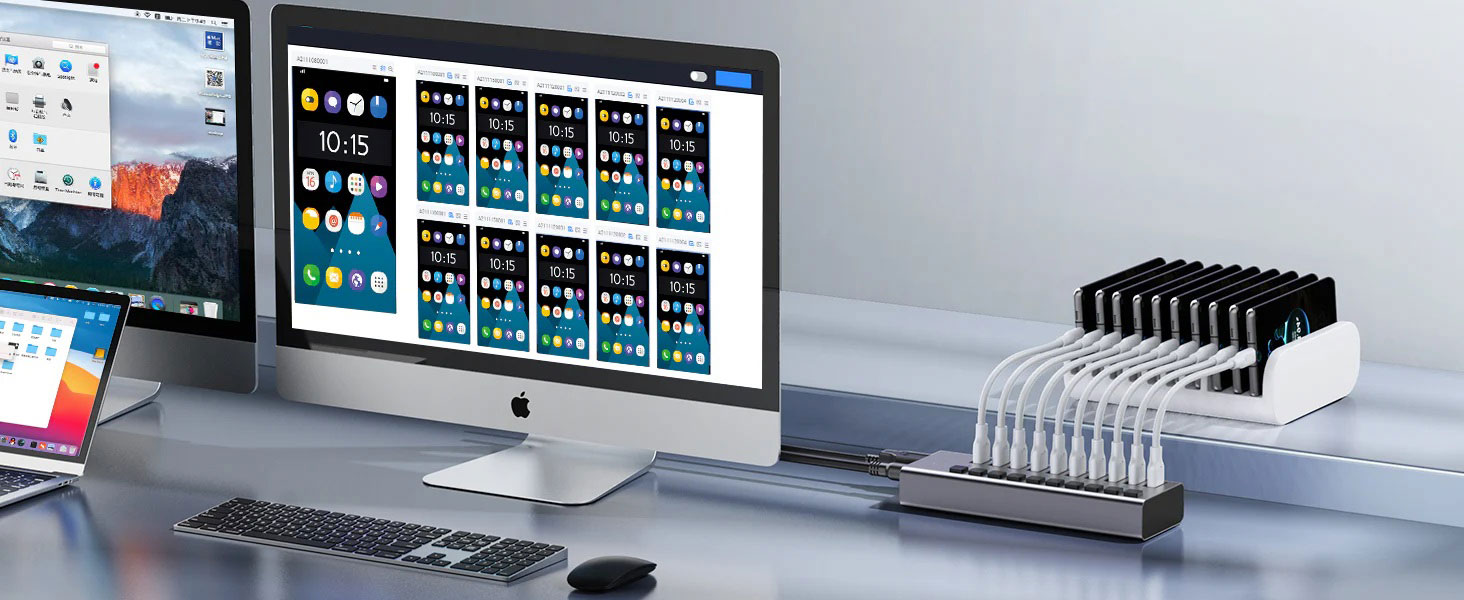
USB hubs are convenient devices that can expand the number of USB ports on computers, laptops, or other devices. They simplify the connection and management of multiple peripheral devices, ranging from keyboards and mice to external hard drives and printers. However, like any electronic device, USB hubs may encounter problems that hinder their functionality. This article will help you master the knowledge and troubleshooting steps for solving common USB hub problems, ensuring that your devices remain seamlessly connected and operational.
2.1 Working Principle
A USB hub acts as a bridge, connecting multiple USB devices to a single USB port on a host device (such as a computer or laptop). It distributes the available bandwidth of the host port to the connected peripheral devices. Understanding this basic function is crucial for more efficient problem diagnosis.
2.2 Type Introduction
2.2.1 Active Hubs
These hubs require an external power source (usually via a wall adapter) to provide sufficient power for multiple connected devices, especially those with high power consumption, such as external hard drives.
2.2.2 Passive Hubs
Passive hubs draw power directly from the host port and are suitable for connecting low-power devices like keyboards, mice, and flash drives. However, their port capacity is generally limited, and they may not be able to power demanding peripheral devices.
2.2.3 Data Transfer Speeds
USB hubs support different data transfer speeds. USB 3.0 and USB-C hubs offer faster speeds compared to USB 2.0.
2.2.4 Connectivity
USB hubs can be connected through various interfaces, including USB-A, USB-C, and even Thunderbolt ports. Understanding these differences is essential for choosing a hub that meets your needs.
III. Common USB Hub Problems and Solutions
3.1 Devices Not Recognized or Connected
One of the most frustrating experiences is when the host device fails to recognize the devices connected to the USB hub. This can be caused by several potential factors, which we will explore below.
USB Hub Malfunction: The hub itself may be malfunctioning due to physical damage or failure of internal components.
Insufficient Power: For active hubs, a power failure or insufficient power supply can cause devices to be unrecognized. Passive hubs may not be able to provide enough power for multiple devices, especially those with high power requirements.
Driver Issues: Outdated or incompatible drivers for the hub or the connected devices can impede normal communication.
Port Problems: The USB ports on the host device or the hub may be damaged or malfunctioning.
Cable Problems: A damaged or faulty USB cable connecting the hub and the host device can disrupt the connection.
Troubleshooting Steps
First, check all connections. Ensure that all cables are firmly connected to the hub, the host device, and each peripheral device. Sometimes, the problem may simply be due to a loose connection. If everything seems to be connected properly, try using different USB ports on the hub and the host device.
Another effective method is to perform a power cycle on the USB hub. Disconnect the hub from the power source (if applicable) and the host device, wait for a few seconds, and then reconnect. This operation can often resolve temporary malfunctions. Additionally, testing the hub with a different device can help determine whether the problem lies with the hub or the peripheral device itself.
3.2 Slow Data Transfer Speed
If you experience slow data transfer speeds when using a hub, it may indicate a bottleneck in the connection. This can be particularly frustrating if you rely on fast data transfer for tasks such as backing up files or transferring large media.
USB Hub Version: A USB 2.0 hub connected to a USB 3.0 port will limit the data transfer speed to the slower USB 2.0 standard.
Hub Overload: Connecting too many devices to the hub can significantly reduce the speed of individual devices.
Faulty USB Cable: A damaged or incompatible USB cable can significantly decrease the data transfer rate.
Driver Issues: Outdated or corrupted drivers can interfere with fast data transfer.
Interference: Electromagnetic interference from other devices can affect data transfer speeds.
Troubleshooting Steps
To solve the problem of slow data transfer speeds, first check the USB versions of the hub and the connected devices. Ensure that the hub and the cable support the required data transfer speed (such as USB 3.0 or 3.1). If your hub is an old model, consider upgrading to a newer version to take advantage of faster data rates.
Reducing the load on the hub can also improve performance. Disconnecting some devices may increase the overall speed. Additionally, replacing the USB cable with a high-quality, certified one can significantly improve the transfer rate. Be sure to keep the drivers updated to ensure optimal performance.
3.3 Devices Disconnect Intermittently
The annoyance of devices unexpectedly disconnecting and reconnecting can affect productivity and lead to data loss. Understanding the causes behind this problem is crucial for a long-term fix.
Insufficient Power: Similar to the "device not recognized" problem, insufficient power in the hub can cause intermittent disconnections, especially when connecting demanding peripheral devices.
Hub Overload: Too many devices consuming power simultaneously can overload the hub, resulting in intermittent disconnections.
Driver Issues: Conflicting or corrupted drivers can cause instability and intermittent disconnections.
USB Port/Cable Malfunction: Damaged USB ports on the hub or the host device, or a faulty USB cable connecting them, can lead to an unstable connection.
Electromagnetic Interference: Interference from other electronic devices can disrupt the USB connection.
Troubleshooting Steps
To solve the problem of intermittent disconnections, first reduce the load on the USB hub. Disconnecting some of the connected devices may stabilize the connection. Additionally, if you are using an active hub, check the power supply. If you suspect that the current power adapter is insufficient, consider using a higher-wattage power adapter if necessary.
Updating the drivers also plays an important role in resolving stability issues. After completing these checks, try moving the hub away from potential sources of electromagnetic interference, as they can also cause connection problems.
3.4 USB Hub Overheating
Overheating poses a serious risk to USB hubs and may cause hardware damage. Monitoring the temperature level and understanding the root causes of overheating are crucial.
Insufficient Ventilation: Inadequate air circulation around the hub can cause it to overheat.
Hub Overload: Connecting too many power-hungry devices to the hub can generate excessive heat.
Faulty Components: Damaged internal components within the hub may cause it to overheat.
Troubleshooting Steps
Improving ventilation is the most direct way to alleviate overheating. Ensure that the area around the hub allows for optimal air circulation; avoid placing it in enclosed spaces or stacking other devices on top of it.
Reducing the load by disconnecting some devices can also help reduce heat generation and keep your hub running smoothly. If your USB hub still overheats after taking these measures, it may be time to consider investing in a new model with better thermal management features.
3.5 USB Hub Not Working at All
If your USB hub is completely unresponsive, it may indicate a more serious problem. This situation can be confusing and requires a thorough investigation.
Physical Damage: The hub may have suffered physical damage due to drops, impacts, or liquid spills.
Internal Component Failure: Key internal components may have failed due to aging, wear and tear, or power surges.
Power Failure: For active hubs, a power failure can cause it to stop working completely.
Troubleshooting Steps
First, check the hub for any visible signs of physical damage, such as cracks or damaged parts. If the hub has a power supply, verify that it is working properly. Testing the hub with other USB ports on the host device may sometimes yield positive results.
If these methods are ineffective and your hub has a reset button, pressing it may restore functionality. However, if the problem persists, it is recommended to contact the manufacturer for repair or replacement options.
IV. Preventing Future USB Hub Problems
By taking some simple preventive measures, you can significantly reduce the likelihood of encountering common USB hub problems. Keeping your setup organized and well-maintained can maximize performance and lifespan.
Avoid Overloading: Do not connect too many high-power devices to an unpowered or low-power hub. Pay attention to the power consumption of peripheral devices and distribute the load accordingly.
Use High-Quality Cables: Purchase high-quality, certified USB cables that are compatible with your hub and devices. Poor-quality cables can cause errors and connection problems.
Maintain Proper Ventilation: Place the hub in a well-ventilated area to prevent overheating. Avoid placing it in enclosed or narrow spaces that restrict air circulation.
Prevent Physical Damage: Handle the hub carefully and avoid exposing it to extreme temperatures, moisture, or impacts, as these can compromise its integrity.
Regularly Update Drivers: Ensure that the drivers for the hub and connected devices are up to date to maintain optimal performance and stability. Regular updates can prevent compatibility issues.
V. Conclusion
USB hubs remain an important part of our digital lives, allowing us to connect multiple devices to our computers and other electronic devices. By understanding the common problems that may arise and adopting the troubleshooting steps outlined in this guide, you can keep your USB hub running smoothly and ensure that your peripheral devices remain reliably connected. Remember, preventive measures such as avoiding overload and ensuring proper ventilation can greatly improve the lifespan and effectiveness of your USB hub. With the right approach, you can enjoy a seamless connection experience with all your devices.